This page exists to demonstrate how content blocks on the Pathway website work. It is intended as a reference. For help understanding how to insert these blocks, there are multiple sources of information:
- Try editing this page in the WordPress admin. By inspecting the blocks on this page it should be easy to understand the names of particular blocks which will help you create them yourself
- Watch the training video. This outlines the main blocks used and explains how to insert/configure them
- Consult general WordPress training materials. The site uses the default WordPress block editor (a.k.a. Gutenberg) and there are many high quality training resources available for this online, including articles and video content. Try searching YouTube to find relevant information
The training video (+ inserting video)
Below is a video walkthrough. To insert videos, just copy and paste the YouTube URL.
Using headings to structure your page
Using headings makes pages clearer. Use H2 as the largest headings – why not H1? Because a page should only contain one H1 element and this will typically have been inserted for you automatically as the page title.
Some pages, such as the support for worker pages will create an automatic table of contents for you based on the headings you insert. To keep the “on this page” menu tidy and clear, we do not insert links for lower level (e.g. H3, H4…) headings, though you are free to use these within the page to break down your content further.
Formatting text
Important parts of a sentence may be highlighted in bold. Emphasis can be added to certain words with italics. Key terms can link to external information for additional explanation.
Items can be formatted as a list:
- First
- Second
- Third
Or as a numbered list when there’s a strong order:
- First
- Second
- Third
Footnotes can be inserted for references1.
Inserting images
Images be used to illustrate content or add additional information. A number of predefined image crops can be selected. Wide crops work well with the design of the site and avoid images disrupting text content too heavily.
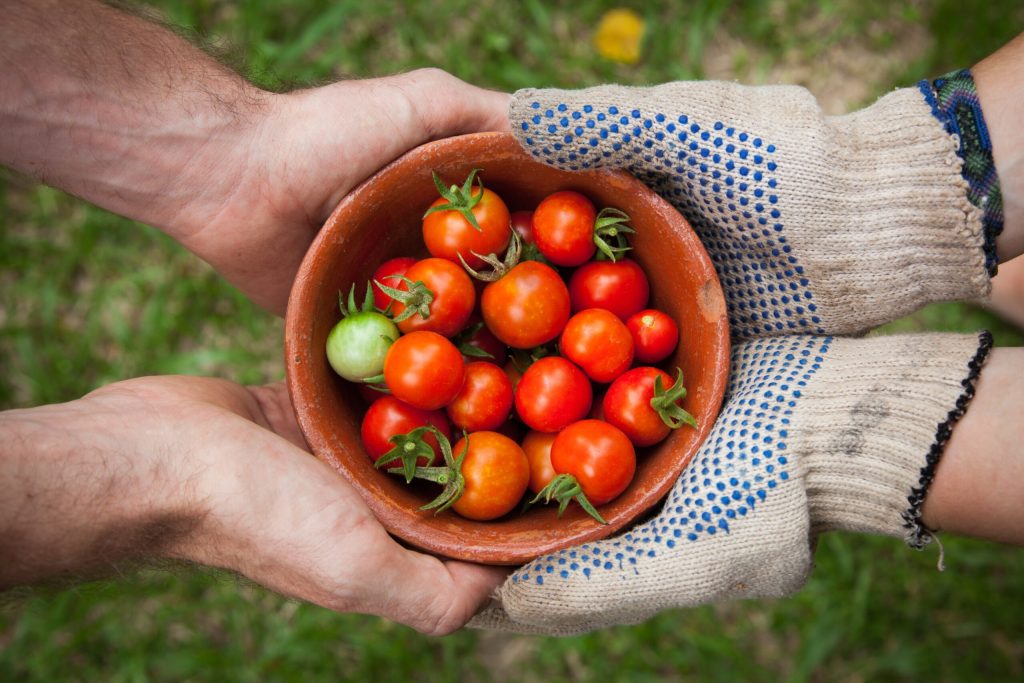
Setting images to ‘wide’ width gives them more prominence:

Highlighting information
Key quotes can be highlighted using a quote block
This is a significant change
A. Provider
Information that is important can be highlighted in a coloured box. Multiple colour options are available.
Caroline Robinson
(+44) 050 123 4567
caroline@workersupportcentre.org.uk
Two styles of the Callout block are available:

Something to say
More information goes here. More information goes here. More information goes here. More information goes here. More information goes here.
Something to say
More information goes here. More information goes here. More information goes here. More information goes here. More information goes here.
Condensing information
A details/summary block (a.k.a. accordion) is available for long information. This is particularly useful at making multi-stage processes easy to scan, and consideration of its use is encouraged whenever page content starts to feel overly long.
Stage 1. Inception
This is the first stage.
Stage 2. Implementation
This is the second stage.
Stage 3. Evaluation
This is the final stage.
Tables
Tables can easily be inserted:
| Heading | Heading |
|---|---|
| Content | Content |
| Content | Content |
Linking to files/downloads
Use the File block for downloads:
- Footnote goes here ↩︎